mirror of
https://github.com/infiniflow/ragflow.git
synced 2026-11-10 21:32:43 +08:00

167 lines
9.7 KiB
Plaintext
167 lines
9.7 KiB
Plaintext
---
|
|
sidebar_position: 2
|
|
slug: /
|
|
sidebar_custom_props: {
|
|
sidebarIcon: LucideRocket
|
|
}
|
|
---
|
|
RAGFlow is an open-source RAG (Retrieval-Augmented Generation) engine based on deep document understanding. When integrated with LLMs, it is capable of providing truthful question-answering capabilities, backed by well-founded citations from various complex formatted data.
|
|
|
|
This quick start guide describes a general process from:
|
|
|
|
- Starting up a local RAGFlow server,
|
|
- Creating a dataset,
|
|
- Establishing an AI chat based on your datasets.
|
|
|
|
:::danger IMPORTANT
|
|
This guide deploys RAGFlow using Docker images and the Docker Compose configuration provided in the repository. Docker images are available for Linux x86-64 and ARM64 starting with v1.0.0-rc2. Docker automatically selects the image matching your host architecture when you use the release tag.
|
|
:::
|
|
|
|
## Prerequisites
|
|
|
|
- A recommended starting configuration of 4 CPU cores (x86-64 or ARM64), 16 GB RAM, and 50 GB free disk space. Actual requirements depend on the document engine, data volume, parsing workload, and concurrency. Local models and OceanBase require additional resources.
|
|
- Docker ≥ 24.0.0 with Docker Compose ≥ v2.26.1 and BuildKit;
|
|
- Access to the dependency image `infiniflow/ragflow_deps:latest` during the image build, and to an LLM and embedding model at runtime.
|
|
|
|
If Docker is not installed, see [Install Docker Engine](https://docs.docker.com/engine/install/).
|
|
|
|
## Start up the server
|
|
|
|
1. For the default Elasticsearch document engine, ensure `vm.max_map_count` is at least 262144 on the Docker host:
|
|
|
|
```bash
|
|
sysctl vm.max_map_count
|
|
sudo sysctl -w vm.max_map_count=262144
|
|
```
|
|
|
|
The change made with `sysctl -w` is temporary. To keep it after a reboot, set `vm.max_map_count=262144` in `/etc/sysctl.conf`. On Docker Desktop, apply the setting to its Linux VM.
|
|
|
|
2. Clone the repository:
|
|
|
|
```bash
|
|
git clone https://github.com/infiniflow/ragflow.git
|
|
```
|
|
|
|
3. Check out the release tag and start the prebuilt RAGFlow Docker image with Docker Compose:
|
|
|
|
```bash
|
|
# Enter the Docker deployment directory.
|
|
cd ragflow/docker
|
|
# Check out the latest release tag; replace it with another version if needed.
|
|
git checkout v1.0.0-rc2
|
|
# Start the RAGFlow services and their dependencies in the background.
|
|
docker compose -f docker-compose.yml up -d
|
|
```
|
|
|
|
To deploy another version, replace `v1.0.0-rc2` with a tag from the [Releases](https://github.com/infiniflow/ragflow/releases) page. Before starting the services, ensure `RAGFLOW_IMAGE` in `docker/.env` uses the matching image tag.
|
|
|
|
The `docker/.env` file controls `DOC_ENGINE`, service ports, and dependency credentials. Change the default passwords before deploying to a network-accessible host.
|
|
|
|
In the RAGFlow open-source 1.0 release, DeepDoc layout analysis, OCR, and table recognition use CPU inference.
|
|
|
|
:::caution Development checkouts
|
|
A development checkout can report a code version older than the database migration version, including immediately after its own migrations. In that case, the RAGFlow server refuses to start with `Refusing to start: database was migrated by a newer version`. For local development with this checkout, set `RAGFLOW_DEV_MODE=true` in `.env` and run the Compose command again. This disables the database downgrade check; leave `RAGFLOW_DEV_MODE=false` for production, and use a binary whose version is at least the database migration version.
|
|
:::
|
|
|
|
4. Check that the service is running:
|
|
|
|
```bash
|
|
docker ps
|
|
docker logs -f ragflow-cpu
|
|
```
|
|
|
|
After initialization, check the RAGFlow API and its dependencies through the web port from another terminal:
|
|
|
|
```bash
|
|
curl -f http://localhost/api/v1/system/healthz
|
|
```
|
|
|
|
A successful response has HTTP status 200. If you changed `SVR_WEB_HTTP_PORT` in `.env`, include that port in the URL. Wait for this check to pass before opening the web interface.
|
|
|
|
5. Open `http://IP_OF_YOUR_MACHINE` in a browser and log in. If you changed `SVR_WEB_HTTP_PORT` in `.env`, include that port in the URL.
|
|
|
|
The RAGFlow container runs the API server, ingestion workers, and data synchronization. Its startup script runs the database migrations before starting the services.
|
|
|
|
## Configure LLMs
|
|
|
|
RAGFlow is a RAG engine and needs to work with an LLM to offer grounded, hallucination-free question-answering capabilities. RAGFlow supports most mainstream LLMs.
|
|
|
|
:::note
|
|
RAGFlow also supports deploying models locally using Ollama or vLLM, but this part is not covered in this quick start guide. See [Deploy Local Models](./guides/models/deploy_local_llm.mdx) for instructions.
|
|
:::
|
|
|
|
To add and configure an LLM:
|
|
|
|
1. Open **User settings** from your avatar, then select **Model providers**.
|
|
2. In **Available models**, select a provider and create a provider instance.
|
|
3. Enter the instance name and required connection information, such as **API Key** and **Base URL**. Select or add the models you need, verify them, and save the instance.
|
|
4. Under **Set default models**, select a Chat model and an Embedding model. Configure other model types as needed.
|
|
|
|
See [Configure Model Providers](./guides/models/llm_api_key_setup.md) for provider-specific fields and screenshots.
|
|
|
|
## Create your first dataset
|
|
|
|
You can upload files to a dataset in RAGFlow and parse them into chunks. A dataset is a collection of documents. Question answering in RAGFlow can be based on one or more datasets. Supported file formats include documents (PDF, DOC, DOCX, TXT, MD, MDX), tables (CSV, XLSX, XLS), images (JPEG, JPG, PNG, TIF, GIF), and slides (PPT, PPTX).
|
|
|
|
To create your first dataset:
|
|
|
|
1. Select **Datasets** in the navigation bar, then click **Create dataset**.
|
|
2. Enter **Name**, select **Embedding model**, and choose **Parse type**. For a first dataset, select **Built-in** and a parsing method suitable for your files. To use **Pipeline**, first create an **Ingestion Pipeline** in **Agent > Ingestion Pipeline**, then select it in the creation dialog.
|
|
3. Click **Save**, open the dataset, and review its **Configuration** before uploading files.
|
|
|
|
See [Dataset List and Creation](./guides/dataset/dataset_list_and_creation.md) and [Dataset Configuration](./guides/dataset/configuration.md) for details.
|
|
|
|
:::caution IMPORTANT
|
|
Choose the embedding model before parsing files. Before the dataset contains chunks, you can change the model directly. Once chunks exist, selecting a different model on the configuration page triggers a compatibility check against sampled existing vectors. The vector dimensions must match, and the average cosine similarity must be at least 0.9. If the check fails, the previous selection is restored. Saving a model change does not automatically re-embed existing chunks.
|
|
:::
|
|
|
|
4. Open the dataset's **Files** page. Click **Add file > Upload file**, select local files, and confirm the upload. Enable **Parse on creation** to start parsing automatically.
|
|
5. If parsing was not started during upload, select the uploaded documents and click **Run**. Wait for parsing to complete before using them in Chat.
|
|
|
|
See [Files: Dataset Document Management](./guides/dataset/files_dataset_document_management.md) for upload and parsing options. If parsing stalls, check the document's **Logs** and the `ragflow-cpu` service logs for ingestion errors.
|
|
|
|
## Intervene with file parsing
|
|
|
|
RAGFlow features visibility and explainability, allowing you to view the chunking results and intervene where necessary. To do so:
|
|
|
|
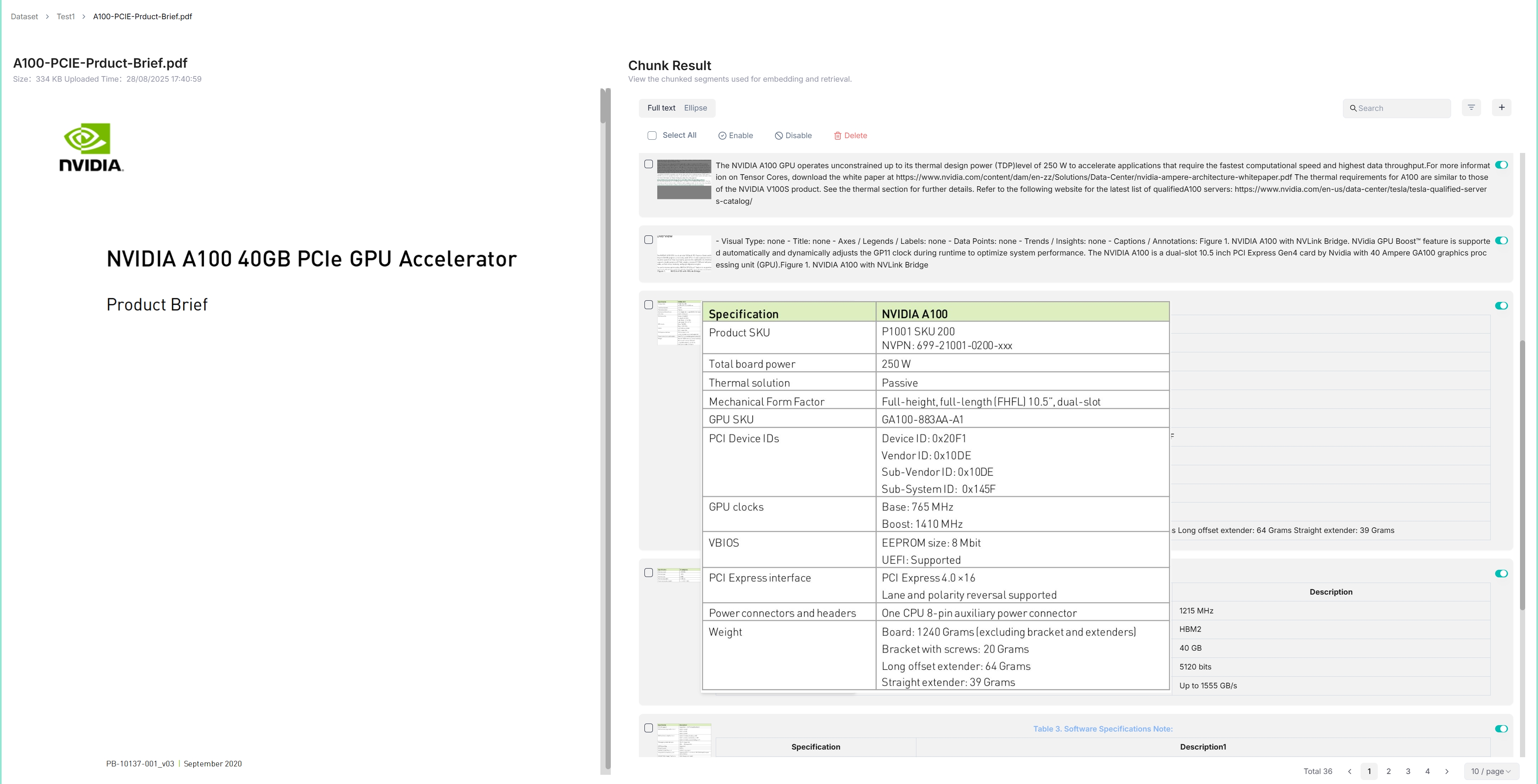
1. Click on the file that completes file parsing to view the chunking results:
|
|
|
|
_You are taken to the **Chunk** page:_
|
|
|
|
|
|
|
|
2. Hover over each snapshot for a quick view of each chunk.
|
|
|
|
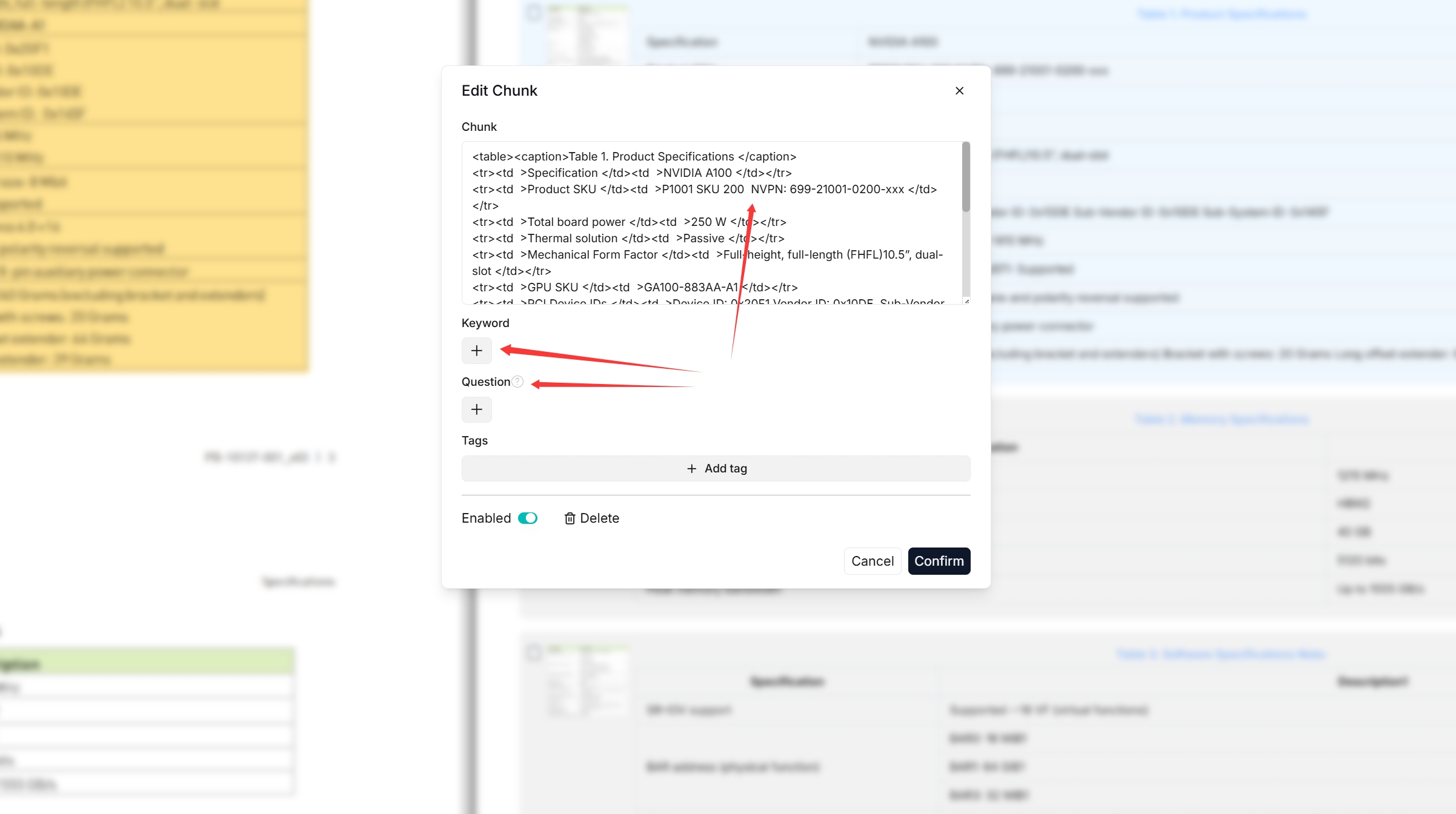
3. Double click the chunked texts to add keywords or make *manual* changes where necessary:
|
|
|
|
|
|
|
|
:::caution NOTE
|
|
You can add keywords or questions to a file chunk to improve its ranking for queries containing those keywords. This action increases its keyword weight and can improve its position in search list.
|
|
:::
|
|
|
|
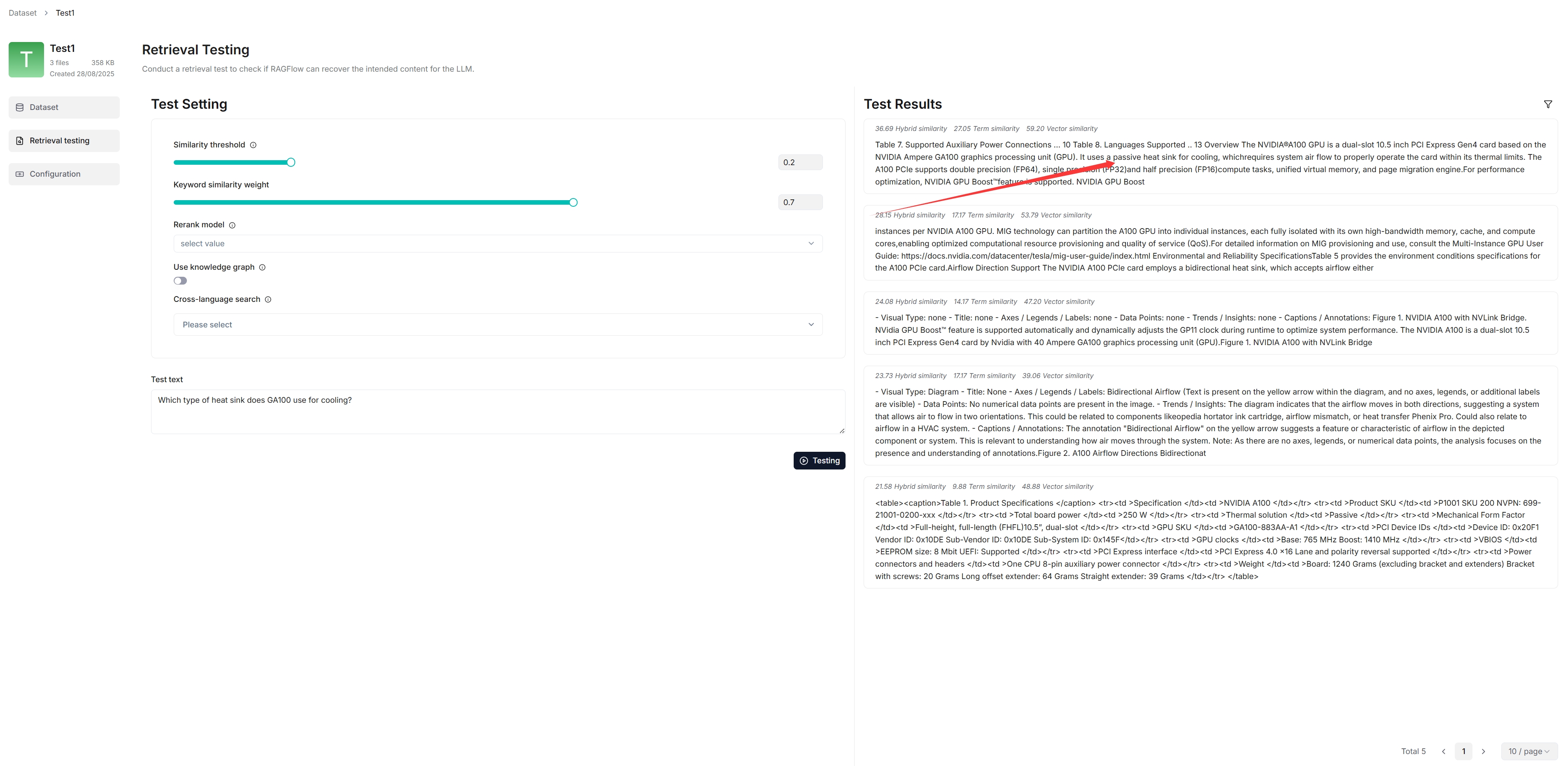
4. In Retrieval testing, ask a quick question in **Test text** to double check if your configurations work:
|
|
|
|
_As you can tell from the following, RAGFlow responds with truthful citations._
|
|
|
|
|
|
|
|
## Set up an AI chat
|
|
|
|
Conversations in RAGFlow are based on a particular dataset or multiple datasets. Once you have created your dataset and finished file parsing, you can go ahead and start an AI conversation.
|
|
|
|
1. Select **Chat** in the navigation bar, then click **Create chat**.
|
|
2. Enter a name and confirm creation.
|
|
3. Open **Chat setting**, select the dataset you parsed, and choose a chat model. You can configure model defaults under **User settings > Model providers > Set default models**.
|
|
4. Review the **System prompt** and retrieval settings. Set **Empty response** to the message you want returned when no answer can be found, or leave it blank to allow the model to generate a response without matching dataset content.
|
|
5. Save the settings, open the chat window, and ask a question about your documents. Select **Naive** for straightforward questions or **Agentic** for questions requiring deeper investigation.
|
|
|
|
See [Feature Overview and Creation](./guides/chat/feature_overview_and_creation.md) for Chat creation screenshots and [Chat Configuration](./guides/chat/chat_configuration.md) for the available settings.
|
|
|
|
:::tip NOTE
|
|
RAGFlow also offers an HTTP API for integrating its capabilities into your applications:
|
|
|
|
- [Acquire a RAGFlow API key](./develop/acquire_ragflow_api_key.md)
|
|
- [HTTP API reference](./references/http_api_reference.md)
|
|
:::
|